Building a Real-Time 3D Print Monitoring System with YOLOv26
Build a Python pipeline that monitors your webcam feed using YOLOv26, detects print failures in real-time, and can stop your printer automatically before a failure wastes hours of filament.
From Trained Model to Live Monitoring
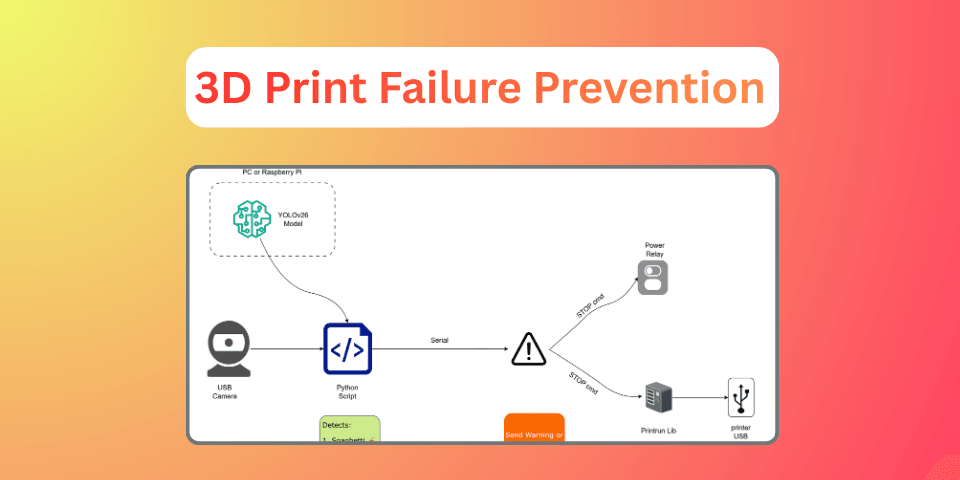
In Part 4, we trained a custom YOLOv26 model to detect spaghetti, stringing, and zits in 3D prints. Now it's time to put that model to work. We will be connecting it to a live webcam feed and building the automation layer that can stop your printer before a failure wastes hours of filament.
This post covers the complete monitoring pipeline: capturing frames, running inference, sending alerts, and physically stopping the printer when things go wrong.
Part 1: Building the Monitoring Script
Now we connect the trained model to a live webcam feed.
The Core Detection Loop
1"""
23D Print Failure Detection Monitor
3Monitors webcam feed for print failures using a trained YOLOv26 model.
4"""
5
6import cv2
7import time
8from datetime import datetime
9from ultralytics import YOLO
10
11
12def load_model(model_path: str) -> YOLO:
13    """Load the trained YOLOv26 model."""
14    model = YOLO(model_path)
15    print(f"[INFO] Model loaded: {model_path}")
16    return model
17
18
19def send_alert(failure_type: str, confidence: float, frame):
20    """
21    Send alert when a failure is detected.
22    """
23    pass
24
25def stop_printer(method: str = "printcore"):
26    """
27    Send stop command to the printer.
28
29    Supports two methods:
30    1. 'printcore' - Send G-code via USB using Printrun's printcore library
31    2. 'relay' - Placeholder for WiFi relay (ESP8266-based smart plug)
32    """
33    if method == "printcore":
34        try:
35            from printrun.printcore import printcore
36            import time as t
37
38            # Connect to printer (adjust port and baud rate for your setup)
39            # Linux: /dev/ttyUSB0, macOS: /dev/tty.usbserial-*, Windows: COM3
40            printer = printcore('/dev/ttyUSB0', 115200)
41
42            # Wait for connection
43            while not printer.online:
44                t.sleep(0.1)
45
46            # Option A: Pause the print (resumable)
47            # printer.pause()
48            # printer.send_now("M0")  # Unconditional stop, wait for user
49
50            # Option B: Emergency stop (non-resumable, use for critical failures)
51            printer.send_now("M112")  # Emergency stop
52            print("[ACTION] Emergency stop sent via Printrun (M112)")
53
54            # Cool down the hotend and bed
55            printer.send_now("M104 S0")  # Hotend off
56            printer.send_now("M140 S0")  # Bed off
57            print("[ACTION] Heaters turned off")
58
59            printer.disconnect()
60
61        except ImportError:
62            print("[ERROR] Printrun not installed. Install with: pip install Printrun")
63        except Exception as e:
64            print(f"[ERROR] Failed to stop printer via printcore: {e}")
65
66    elif method == "relay":
67        # TODO: Implement WiFi relay control
68        pass
69
70
71def monitor_printer(
72    model_path: str,
73    camera_index: int = 0,
74    confidence_threshold: float = 0.5,
75    alert_cooldown: int = 60,
76    stop_on_spaghetti: bool = True,
77    stop_method: str = "printcore",
78    display: bool = True,
79):
80    """
81    Main monitoring loop. Captures webcam frames, runs YOLOv26 inference,
82    and takes action on detected failures.
83
84    Args:
85        model_path: Path to trained YOLOv26 weights (.pt file)
86        camera_index: Webcam index (0 for default, 1 for USB webcam, or RTSP URL)
87        confidence_threshold: Minimum confidence to trigger an alert (0.0 - 1.0)
88        alert_cooldown: Seconds between repeated alerts for the same failure type
89        stop_on_spaghetti: If True, automatically stop the printer on spaghetti detection
90        stop_method: 'printcore' for USB G-code, 'relay' for WiFi smart plug
91        display: If True, show the detection feed in a window
92    """
93    # Load model
94    model = load_model(model_path)
95
96    # Open webcam
97    cap = cv2.VideoCapture(camera_index)
98    if not cap.isOpened():
99        print(f"[ERROR] Cannot open camera {camera_index}")
100        return
101
102    print(f"[INFO] Camera opened: index {camera_index}")
103    print(f"[INFO] Confidence threshold: {confidence_threshold}")
104    print(f"[INFO] Alert cooldown: {alert_cooldown}s")
105    print(f"[INFO] Auto-stop on spaghetti: {stop_on_spaghetti}")
106    print("[INFO] Press 'q' to quit\n")
107
108    # Track alert cooldowns per class
109    last_alert_time = {}
110
111    while True:
112        ret, frame = cap.read()
113        if not ret:
114            print("[ERROR] Failed to capture frame")
115            break
116
117        # Run inference
118        results = model(frame, verbose=False, conf=confidence_threshold)
119
120        # Process detections
121        for result in results:
122            boxes = result.boxes
123
124            for box in boxes:
125                cls_id = int(box.cls[0])
126                confidence = float(box.conf[0])
127                class_name = model.names[cls_id]
128
129                # Check cooldown
130                now = time.time()
131                if class_name in last_alert_time:
132                    if now - last_alert_time[class_name] < alert_cooldown:
133                        continue
134
135                # Trigger alert
136                last_alert_time[class_name] = now
137                send_alert(class_name, confidence, frame)
138
139                # Auto-stop for spaghetti (critical failure)
140                if class_name == "spaghetti" and stop_on_spaghetti:
141                    print("[CRITICAL] Spaghetti detected! Stopping printer...")
142                    stop_printer(method=stop_method)
143
144                    # Save final frame and exit
145                    cv2.imwrite("spaghetti_stop_frame.jpg", frame)
146                    cap.release()
147                    if display:
148                        cv2.destroyAllWindows()
149                    return
150
151        # Display annotated frame
152        if display:
153            annotated_frame = results[0].plot()
154            cv2.imshow("Print Monitor", annotated_frame)
155
156            if cv2.waitKey(1) & 0xFF == ord('q'):
157                break
158
159        # Throttle to ~1 FPS (no need for high frame rate)
160        time.sleep(1)
161
162    cap.release()
163    if display:
164        cv2.destroyAllWindows()
165    print("[INFO] Monitoring stopped")
166
167
168if __name__ == "__main__":
169    monitor_printer(
170        model_path="runs/detect/print_failure_detector_v26_nano_4090/weights/best.pt",
171        camera_index=0,           # Change to 1 for USB webcam, or RTSP URL
172        confidence_threshold=0.5, # Lower = more sensitive, higher = fewer false alarms
173        alert_cooldown=60,        # Don't spam alerts for the same issue
174        stop_on_spaghetti=True,   # Auto-stop on critical failures
175        stop_method="printcore",  # or "relay" for WiFi smart plug
176        display=True,             # Show live feed (set to False on headless systems)
177    )
Understanding the Key Design Decisions
1. Throttling to About 1 FPS
Print failures develop over minutes, not milliseconds. Running inference at 30 FPS would waste CPU/GPU cycles for no benefit. 1 frame per second is more than enough to catch any failure in time.
2. Alert Cooldown
Without a cooldown, you'd get hundreds of alerts per minute for a persistent failure. The alert_cooldown parameter (default 60 seconds) ensures you get one alert per failure type per minute. Enough to be useful, not enough to be annoying.
3. Spaghetti = Auto-Stop, Others = Alert Only
Spaghetti means the print has completely detached and is creating a mess. There's no recovery — stopping immediately prevents further damage. Stringing and zits are less critical: stringing might self-correct, and zits are cosmetic surface defects that don't threaten the print.
4. Confidence Threshold
Start with 0.5 (50%). If you get too many false alarms, increase it. If you're missing real failures, decrease it. Every setup is different — camera angle, lighting, and printer model all affect detection confidence.
Part 2: Stopping the Printer
This is where things get practical. You have two options for physically stopping the printer.
Option A: Printrun / printcore (USB Connection)
Printrun is an open-source 3D printer host suite. Its printcore Python library lets you connect to any Marlin/RepRap printer via USB and send G-code commands programmatically — the same library we used in Part 2 for calibration.
Install:
1pip install PrintrunHow it works in our pipeline:
1from printrun.printcore import printcore
2import time
3
4# Connect to the printer
5p = printcore('/dev/ttyUSB0', 115200)
6
7# Wait for connection
8while not p.online:
9    time.sleep(0.1)
10
11# Emergency stop
12p.send_now("M112")    # Immediately halt all motion
13
14# Turn off heaters
15p.send_now("M104 S0") # Hotend off
16p.send_now("M140 S0") # Bed off
17
18# Disconnect
19p.disconnect()
Key G-code commands for failure response:
| Command | Action | When to Use |
|---|---|---|
M0 | Unconditional stop, wait for user input | Pause for investigation |
M112 | Emergency stop — kills all heaters and motors | Spaghetti, critical failure |
M104 S0 | Turn off hotend | After any stop |
M140 S0 | Turn off heated bed | After any stop |
M25 | Pause SD card print | If printing from SD |
[!WARNING] M112 is non-resumable. It's a hard stop that requires a printer restart. Use it only for critical failures like spaghetti. For less severe issues like stringing, prefer
M0(pause) so you can inspect and potentially resume.
[!IMPORTANT] USB connection caveat: If you're printing from an SD card (recommended for long prints in Part 3),
printcorecan still connect via USB and send commands — the SD print and USB connection are independent. However, if you're printing via USB through Pronterface/OctoPrint,printcorecan't connect to the same port simultaneously. In that case, use the OctoPrint API or Pronterface's built-in RPC server instead.
Option B: WiFi Smart Plug / ESP8266 Relay (Power Cut)
If USB isn't practical (printer far from the monitoring computer, or you prefer a simpler approach), you can cut power to the printer using a WiFi-enabled smart plug.
How it works:
- An ESP8266-based smart plug (like a Sonoff, or any Tasmota-flashed plug) sits between the wall outlet and the printer
- When a failure is detected, the script sends an HTTP request to the plug's API to turn off power
Example with a Tasmota-flashed smart plug:
1import requests
2
3def stop_printer_via_relay(plug_ip: str = "192.168.1.100"):
4    """Cut printer power via WiFi smart plug."""
5    try:
6        # Tasmota command to turn off
7        response = requests.get(
8            f"http://{plug_ip}/cm?cmnd=Power%20Off",
9            timeout=5
10        )
11        if response.status_code == 200:
12            print(f"[ACTION] Power cut via smart plug at {plug_ip}")
13        else:
14            print(f"[ERROR] Smart plug returned status {response.status_code}")
15    except requests.exceptions.RequestException as e:
16        print(f"[ERROR] Cannot reach smart plug: {e}")
[!CAUTION] Power cutting is abrupt. It's like pulling the plug - no graceful shutdown, no parking the nozzle. The print will be unrecoverable. But for a spaghetti failure, the print is already done for. The goal is to prevent runaway heating and waste.
Putting It All Together
Running the Monitor
1# Activate your environment
2source print_detect_env/bin/activate
3
4# Run the monitor
5python print_monitor.py
A window will pop up showing the live webcam feed with YOLOv26 detections overlaid. If a failure is detected above the confidence threshold, you'll see console alerts and (if configured) the printer will be stopped.
Tuning for Your Setup
Every printer + camera + lighting setup is different. Here's what to adjust:
| Parameter | Default | Adjust When |
|---|---|---|
confidence_threshold | 0.5 | Too many false alarms >> increase. Missing real failures >> decrease |
alert_cooldown | 60s | Too many alerts >> increase. Want faster response >> decrease |
camera_index | 0 | Wrong camera >> try 1, 2, or an RTSP URL for IP cameras |
stop_on_spaghetti | True | Set to False if you just want alerts without auto-stop |
Camera Placement Tips
The model performs best when the camera can see the print area clearly:
- Mount the camera facing the build plate at a 30-45° angle: this gives the best view of both the print and potential spaghetti
- Ensure consistent lighting: the LED light bar from earlier in this series helps enormously
- Avoid backlighting: don't place the camera facing a window
- Keep the lens clean: filament dust accumulates surprisingly fast
What's Next?
This is a working MVP, but there's plenty of room to improve. Here are some ideas for what I want to build next:
Telegram Bot Integration
Replace the placeholder send_alert() with a real Telegram Bot that sends you detection images and lets you remotely decide whether to stop the print.
OctoPrint Plugin
If you're running OctoPrint, the detection script could integrate as a plugin, using OctoPrint's REST API to pause/cancel prints and send notifications through OctoPrint's existing notification system.
Raspberry Pi Deployment
Run the entire pipeline on a Raspberry Pi alongside OctoPrint. YOLOv26n is small enough for inference on a Pi 4 or Pi 5 (at ~0.5 FPS with CPU, faster with a Coral USB accelerator).
Augmenting with Custom Data
The Roboflow dataset is a great starting point, but your specific printer and filament may produce unique failure patterns. Snap photos of your own failures, annotate them on Roboflow, and fine-tune the model for best results.
Full Code Reference
The complete monitoring script from this post is available here: 3d Print Monitoring.
Series Navigation:
- Getting Started with the Ender 3 V2 Neo
- Calibrations That Actually Matter
- Slicer Deep Dive & Long Print Survival
- AI Print Failure Detection — Training YOLOv26
- Real-Time Print Monitoring & Automated Control (You are here)
Resources:
Previous Post
Training a YOLOv26 Model for 3D Print Failure Detection
Next Post
The Anatomy of 3D Print Failures: Causes and Fixes
If the article helped you in some way, consider giving it a like. This will mean a lot to me. You can download the code related to the post using the download button below.
If you see any bug, have a question for me, or would like to provide feedback, please drop a comment below.